Ir para conteúdo
View in the app

A better way to browse. Learn more.

GGames Fórum

A full-screen app on your home screen with push notifications, badges and more.

To install this app on iOS and iPadOS
  1. Tap the Share icon in Safari
  2. Scroll the menu and tap Add to Home Screen.
  3. Tap Add in the top-right corner.
To install this app on Android
  1. Tap the 3-dot menu (⋮) in the top-right corner of the browser.
  2. Tap Add to Home screen or Install app.
  3. Confirm by tapping Install.

Eu tenho o péssimo habito de esconder arquivos... calma que não são 'proibidões' rs... faço isso por organização, principalmente que não tenho espaço no meu SSD primário (somente 120gb)... então os jogos tem que ficar em outro HD... principalmente os da Microsoft que são baixados da Store deles, então vamos ao tutorial.

  1. Aperte Windows + E para abrir o Explorer
  2. Lá no topo, aperte em EXIBIRimage.png
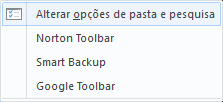
  3. Agora clique em OPÇÕES > Alterar opções de pasta e pesquisa
    image.png
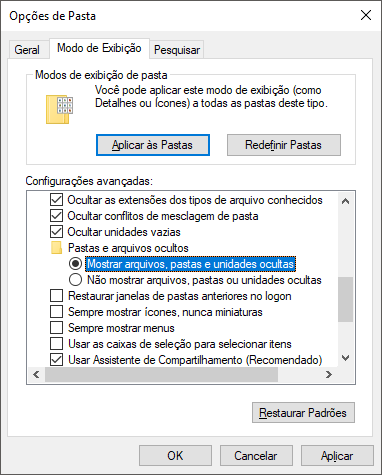
  4. Na aba Modo de Exibição, localize PASTAS E ARQUIVOS OCULTOS e selecione MOSTRAR ARQUIVOS, PASTAS E UNIDADES OCULTAS.
    image.png
  5. É só aplicar e acessar.
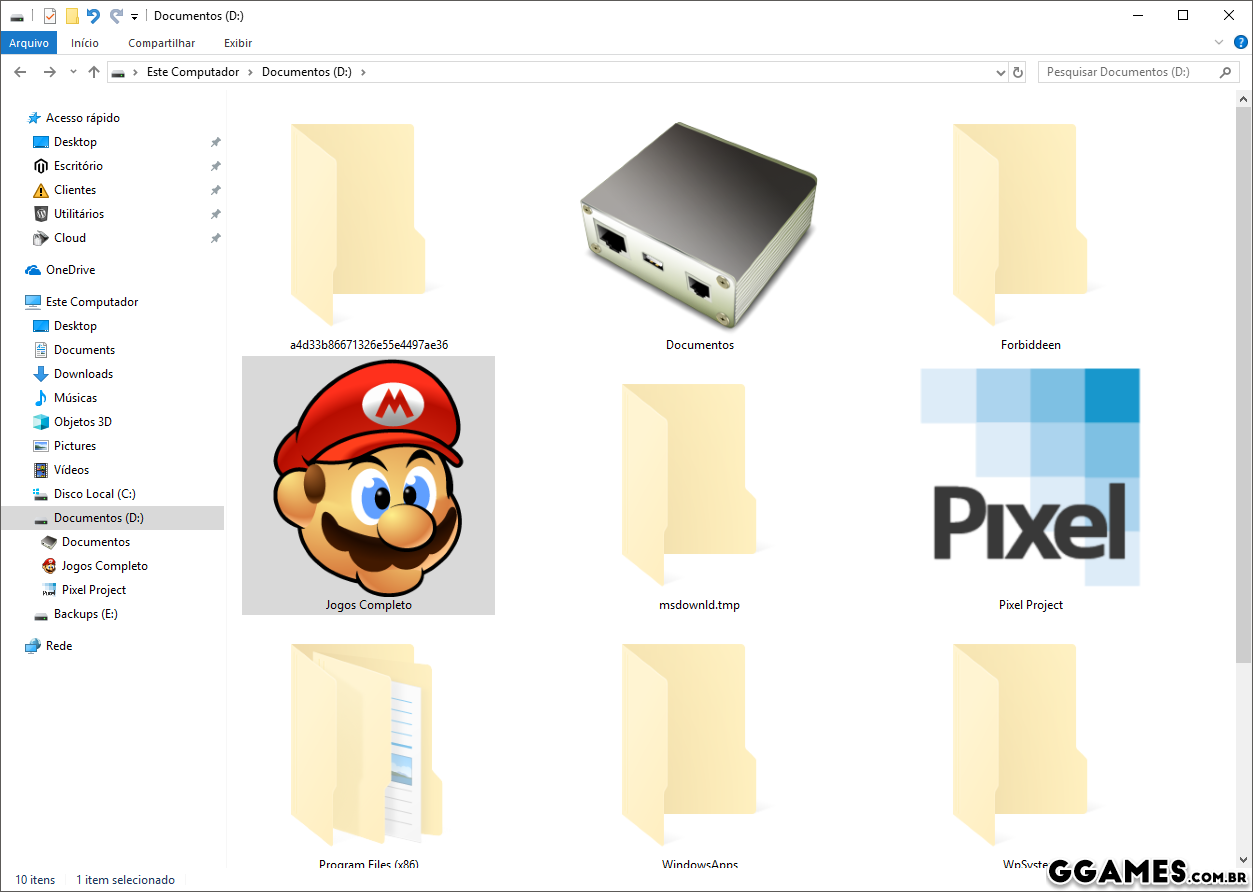
    Resultado:
  6. image.png

Fácil né. Dá para fazer também pelo PAINEL DE CONTROLE > Personalizar, mas esse método achei mais simples.

Feedback do Usuário

Comentários Recomendados

Não há comentários para mostrar.

Crie uma conta ou entre para comentar

Configure browser push notifications

Chrome (Android)
  1. Tap the lock icon next to the address bar.
  2. Tap Permissions → Notifications.
  3. Adjust your preference.
Chrome (Desktop)
  1. Click the padlock icon in the address bar.
  2. Select Site settings.
  3. Find Notifications and adjust your preference.