


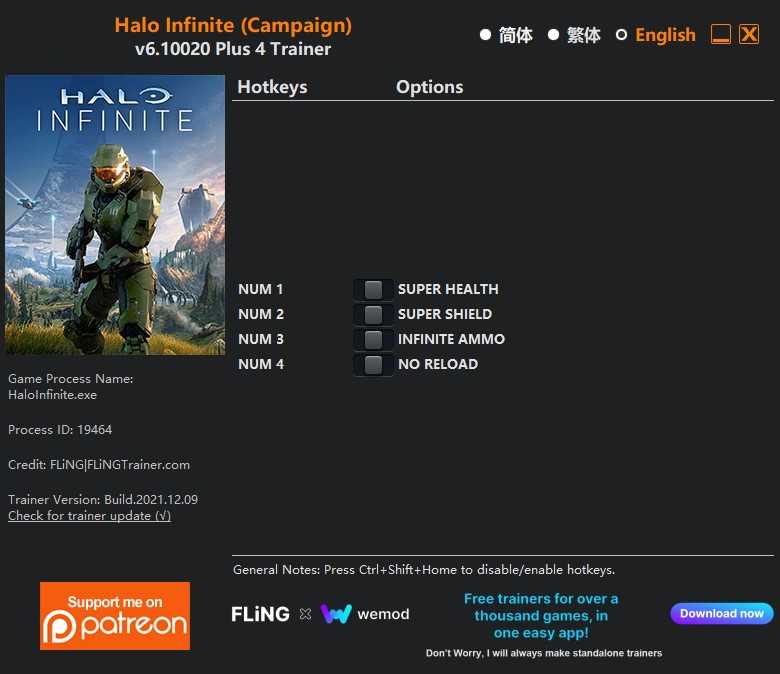
Single Player Campaign Mode Only. *Note: the single player campaign mode is just a DLC of the game, the game itself is still a multiplayer game. Using trainer may result in ban. USE AT YOUR OWN RISK.*
OPTIONS
- Num 1 – Super Health
- Num 2 – Super Shield
- Num 3 – Infinite Ammo
- Num 4 – No Reload
NOTES
Note the single player campaign mode is just a DLC of the game, the game itself is still a multiplayer game. Using trainer may result in ban. USE AT YOUR OWN RISK.
Note the game’s anticheat is running even in single player campaign mode, activating trainer options have a small chance of crashing or freezing the game. It’s best to activate cheats at the beginning of a mission or when you go past a save point.
“Super Health”: When activated, you’ll have massive amount of health, the effect restores after the mission ends.
“Super Shield”: When activated, you’ll have massive amount of shield, the effect restores after the mission ends.
“Infinite Ammo”: When activated, you’ll have massive amount of ammo, the effect restores after changing weapons. This does not work for energy weapons.
“No Reload”: When activated, you’ll have massive amount of loaded ammo, the effect restores after changing weapons. This does not work for energy weapons.

Você só pode fornecer uma análise uma vez que você tenha baixado o arquivo.
Não há análises para mostrar