


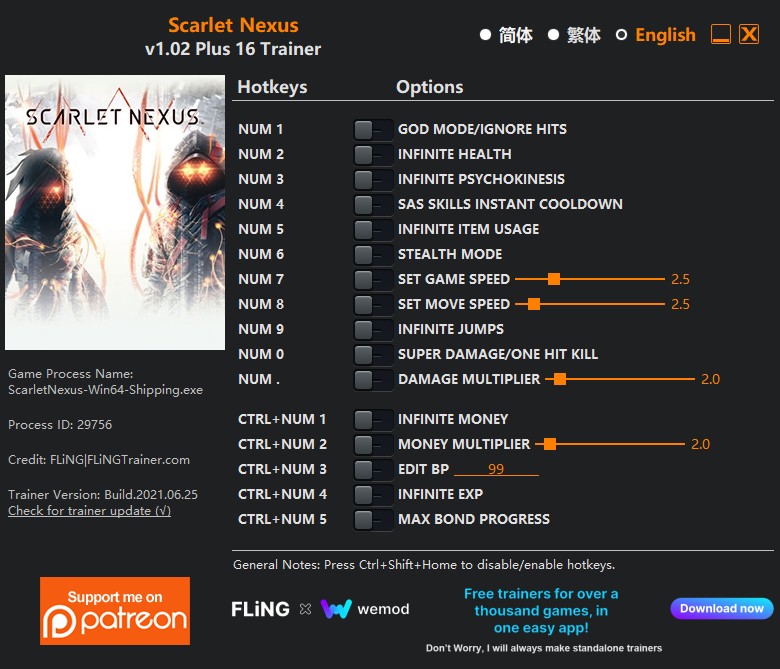
OPTIONS
- Num 1 – God Mode/Ignore Hits
- Num 2 – Infinite Health
- Num 3 – Infinite Psychokinesis
- Num 4 – SAS Skills Instant Cooldown
- Num 5 – Infinite Item Usage
- Num 6 – Stealth Mode
- Num 7 – Set Game Speed
- Num 8 – Set Move Speed
- Num 9 – Infinite Jumps
- Num 0 – Super Damage/One Hit Kill
- Num . – Damage Multiplier
- Ctrl+Num 1 – Infinite Money
- Ctrl+Num 2 – Money Multiplier
- Ctrl+Num 3 – Edit BP
- Ctrl+Num 4 – Infinite Exp
- Ctrl+Num 5 – Max Bond Progress
NOTES
“Infinite Item Usage”: Takes effect when you use/sell items. Note the item quantity must be greater than 1 for it to work.
“Stealth Mode”: If activates during battle, you’ll need to finish the battle before you can enter stealth mode.
“Infinite Money”: Takes effect when you gain or spend money.
“Money Multiplier”: Note the display value is not affected, but the money you gain will be multiplied before adding to the total money amount.
“Edit BP”: Takes effect when you open menu.
“Infinite Exp”: Takes effect when you open menu or gain exp.
“Max Bond Progress”: Takes effect when bond progress increases (for example, when you kill an enemy), only works for party members. Note after bond progress is maxed, you still need to talk to party members to increase their bond level.

Você só pode fornecer uma análise uma vez que você tenha baixado o arquivo.
Não há análises para mostrar