





OPTIONS
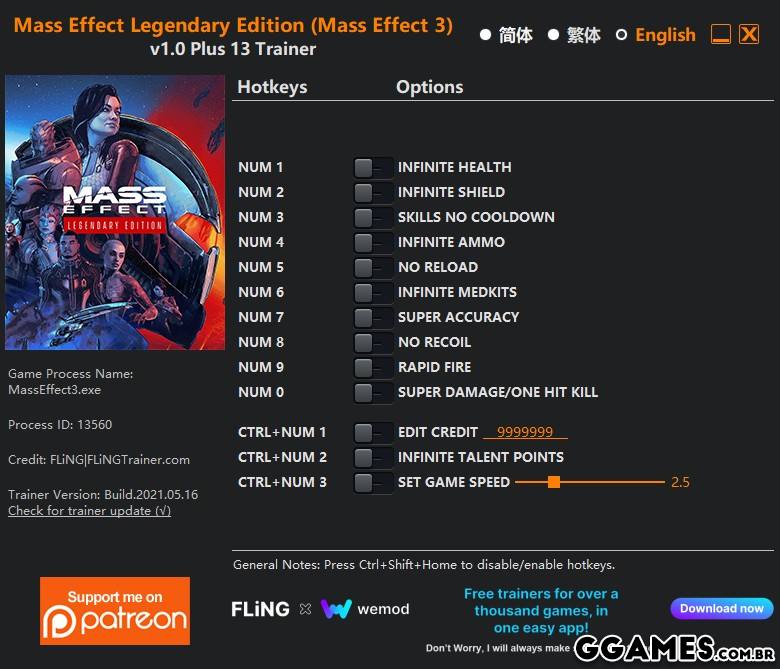
- Num 1 – Infinite Health
- Num 2 – Infinite Shield
- Num 3 – Skills No Cooldown
- Num 4 – Infinite Ammo
- Num 5 – No Reload
- Num 6 – Infinite Medkits
- Num 7 – Super Accuracy
- Num 8 – No Recoil
- Num 9 – Rapid Fire
- Num 0 – Super Damage/One Hit Kill
- Ctrl+Num 1 – Edit Credit
- Ctrl+Num 2 – Infinite Talent Points
- Ctrl+Num 3 – Set Game Speed
NOTES
“Infinite Talent Points”: If you opened any menu when activating this option, you’ll need to exit all menus (so your character can move) in order to take effect.
O Que Há de Novo na Versão V1.0-V20210607 plus 13
Visualizar log de alteraçõesLançado
OPTIONS
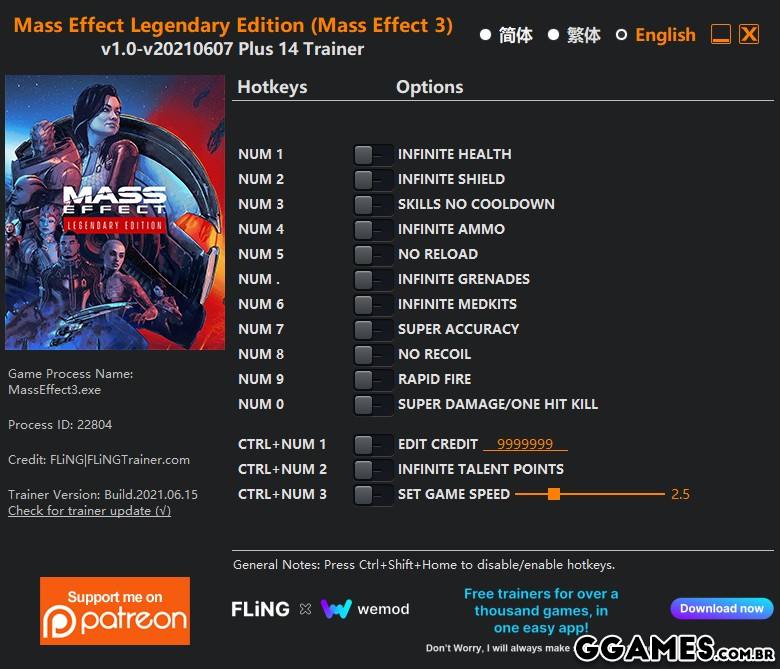
- Num 1 – Infinite Health
- Num 2 – Infinite Shield
- Num 3 – Skills No Cooldown
- Num 4 – Infinite Ammo
- Num 5 – No Reload
- Num . – Infinite Grenades
- Num 6 – Infinite Medkits
- Num 7 – Super Accuracy
- Num 8 – No Recoil
- Num 9 – Rapid Fire
- Num 0 – Super Damage/One Hit Kill
- Ctrl+Num 1 – Edit Credit
- Ctrl+Num 2 – Infinite Talent Points
- Ctrl+Num 3 – Set Game Speed
NOTES
“Infinite Talent Points”: If you opened any menu when activating this option, you’ll need to exit all menus (so your character can move) in order to take effect.
Você só pode fornecer uma análise uma vez que você tenha baixado o arquivo.
Não há análises para mostrar