


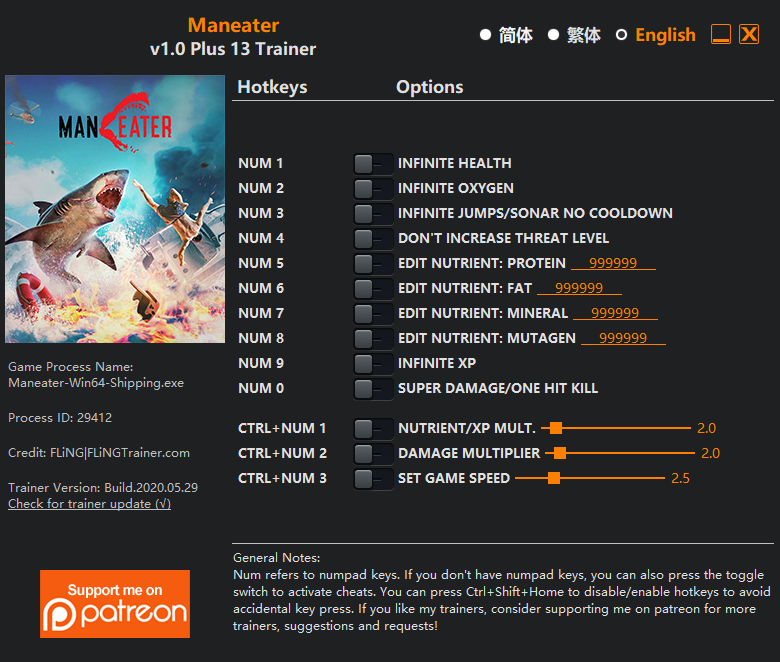
OPTIONS
Num 1 – Infinite Health
Num 2 – Infinite Oxygen
Num 3 – Infinite Jumps/Sonar No Cooldown
Num 4 – Don’t Increase Threat Level
Num 5 – Edit Nutrient: Protein
Num 6 – Edit Nutrient: Fat
Num 7 – Edit Nutrient: Mineral
Num 8 – Edit Nutrient: Mutagen
Num 9 – Infinite XP
Num 0 – Super Damage/One Hit Kill
Ctrl+Num 1 – Nutrient/XP Multiplier
Ctrl+Num 2 – Damage Multiplier
Ctrl+Num 3 – Set Game Speed
NOTES
“Infinite Jumps/Sonar No Cooldown”: You need to have double jumps ability for infinite jumps to work.
“Edit Nutrient” options take effect when opening menu.
“Infinite XP” takes effect when you gain XP.
-
OPÇÕES
Num 1 - Saúde Infinita
Num 2 - Oxigênio Infinito
Num 3 - Saltos Infinitos / Sonar Sem Recarga
Num 4 - Não aumente o nível de ameaça
Num 5 - Edit Nutrient: Protein
Num 6 - Editar Nutriente: Gordura
Num 7 - Edit Nutrient: Mineral
Num 8 - Edit Nutrient: Mutagen
Num 9 - XP infinito
Num 0 - Super Damage / One Hit Kill
Ctrl + Num 1 - Multiplicador de nutrientes / XP
Ctrl + Num 2 - Multiplicador de Dano
Ctrl + Num 3 - Definir velocidade do jogo
NOTAS
“Saltos Infinitos / Sonar Sem Cooldown”: Você precisa ter a capacidade de saltos duplos para que saltos infinitos funcionem.
As opções "Editar nutriente" entram em vigor ao abrir o menu.
"XP infinito" entra em vigor quando você ganha XP.
-
 1
1
Você só pode fornecer uma análise uma vez que você tenha baixado o arquivo.