




OPTIONS
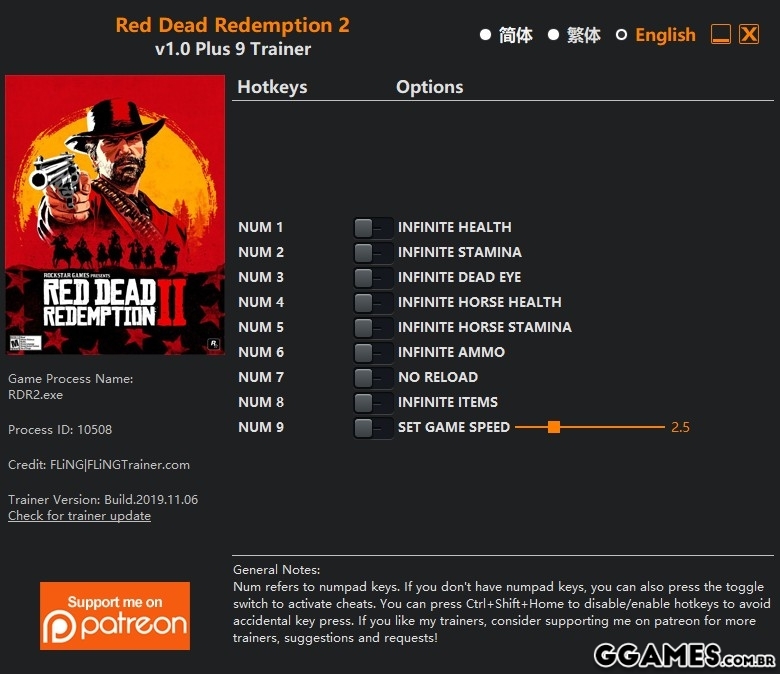
- Num 1 – Infinite Health
- Num 2 – Infinite Stamina
- Num 3 – Infinite Dead Eye
- Num 4 – Infinite Horse Health
- Num 5 – Infinite Horse Stamina
- Num 6 – Infinite Ammo
- Num 7 – No Reload
- Num 8 – Infinite Items
- Num 9 – Set Game Speed
NOTES
- Health/Stamina/Dead Eye options take effects when values decrease (take damage, use dead eye, running, etc).
- “Infinite Ammo” and “No Reload” take effects when shooting.
- “Infinite Items” takes effect when item decreases, item quantity will set to stackable max.
- “Infinite Health” can’t prevent instant death (fall off the cliff, QTE failed, headshot, etc)
O Que Há de Novo na Versão +11 v1.0
Visualizar log de alteraçõesLançado
Trainer Options
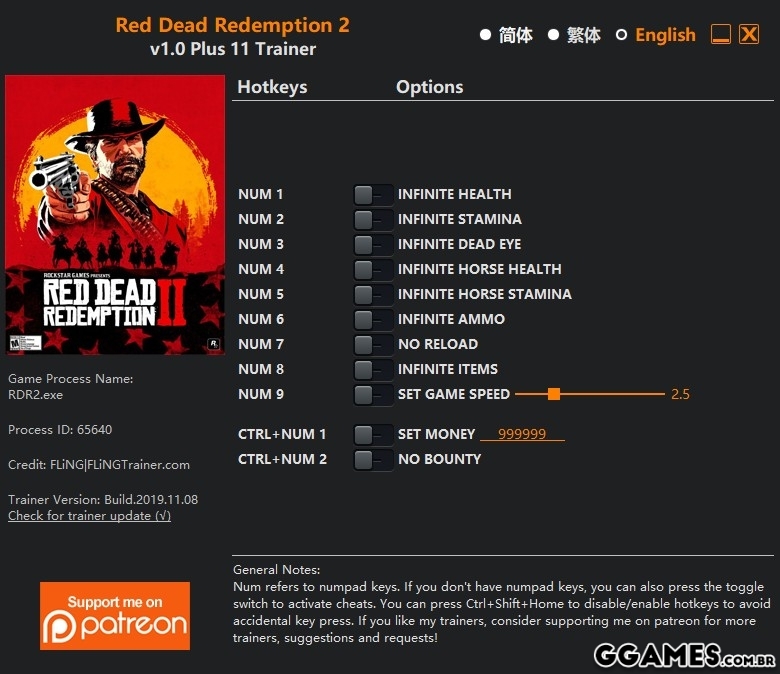
- Num 1 – Infinite Health
- Num 2 – Infinite Stamina
- Num 3 – Infinite Dead Eye
- Num 4 – Infinite Horse Health
- Num 5 – Infinite Horse Stamina
- Num 6 – Infinite Ammo
- Num 7 – No Reload
- Num 8 – Infinite Items
- Num 9 – Set Game Speed
- Ctrl+Num 1 – Set Money
- Ctrl+Num 2 – No Bounty
NOTES
- Health/Stamina/Dead Eye options take effects when values decrease (take damage, use dead eye, running, etc).
- “Infinite Ammo” and “No Reload” take effects when shooting.
- “Infinite Items” takes effect when item decreases, item quantity will set to stackable max.
- “Infinite Health” can’t prevent instant death (fall off the cliff, QTE failed, headshot, etc)
- “Set Money” takes effect when money changes; “No Bounty” takes effect when bounty increases.
-
 2
2
Você só pode fornecer uma análise uma vez que você tenha baixado o arquivo.
Não há análises para mostrar