


Líderes


Conteúdo Popular
Exibindo conteúdo com a maior reputação em 11/12/20 em %
-
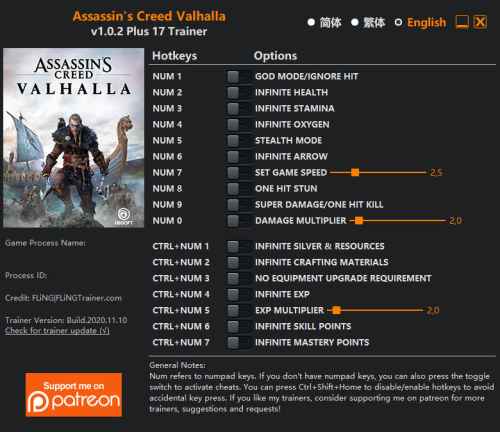 OPTIONS Num 1 – God Mode/Ignore Hit Num 2 – Infinite Health Num 3 – Infinite Stamina Num 4 – Infinite Oxygen Num 5 – Stealth Mode Num 6 – Infinite Arrow Num 7 – Set Game Speed Num 8 – One Hit Stun Num 9 – Super Damage/One Hit Kill Num 0 – Damage Multiplier Ctrl+Num 1 – Infinite Silver & Resources Ctrl+Num 2 – Infinite Crafting Materials Ctrl+Num 3 – No Equipment Upgrade Requirement Ctrl+Num 4 – Infinite Exp Ctrl+Num 5 – Exp Multiplier Ctrl+Num 6 – Infinite Skill Points Ctrl+Num 7 – Infinite Mastery Points NOTES “Stealth Mode”: When activated, most enemies will ignore you, but if you attack them, you’ll be detected. Note this option may not work during certain story missions. “Infinite Arrow”: When activated, arrow quantity will not decrease, note this option requires more than one arrow for it to work. “Infinite Silver & Resources” and “Infinite Crafting Materials” take effects when opening the item bag. Note these options only affect the resources/materials you already owned. “Infinite Exp” takes effect when you gain exp. “No Equipment Upgrade Requirement”: Activated before opening item menu. Some equipments may say not enough materials, but you can still upgrade them. Note if you want to disable this option, you’ll need to restart the game for the upgrade requirements to restore.1 ponto
Líderes está configurado para São Paulo/GMT-03:00